Skip to content

Ubuntu 22.04 to Ubuntu 24.04 Unable to ping

Locked Unsolved Linux
37 3 13.4k 1
  • wrote on last edited by
    #1

    Ubuntu 22.04 upgrade to Ubuntu 24.04 can’t ping, found the problem, resolv.conf is corrupted or does not exist, 24.04 official has abandoned resolv.conf, what is the best alternative to use.

  • Ubuntu 22.04 upgrade to Ubuntu 24.04 can’t ping, found the problem, resolv.conf is corrupted or does not exist, 24.04 official has abandoned resolv.conf, what is the best alternative to use.

    wrote on last edited by
    #2

    @abcabc123 For years it’s been simple to set up DNS on a Linux machine. You’d usually just add a couple of entries to /etc/resolv.conf and you’re done.

    # Use Google's public DNS servers.
    nameserver 8.8.4.4
    nameserver 8.8.8.8
    

    But things change and now it’s not that simple. If you now edit /etc/resolv.conf on Ubuntu you’ll find that the edits are ephemeral. If you restart (or even hibernate) your machine then they’ll be overwritten by default content.

    nameserver 127.0.0.53
    search Home
    

    This is pretty simple to fix though.

    Install the resolvconf package.

    sudo apt install resolvconf
    

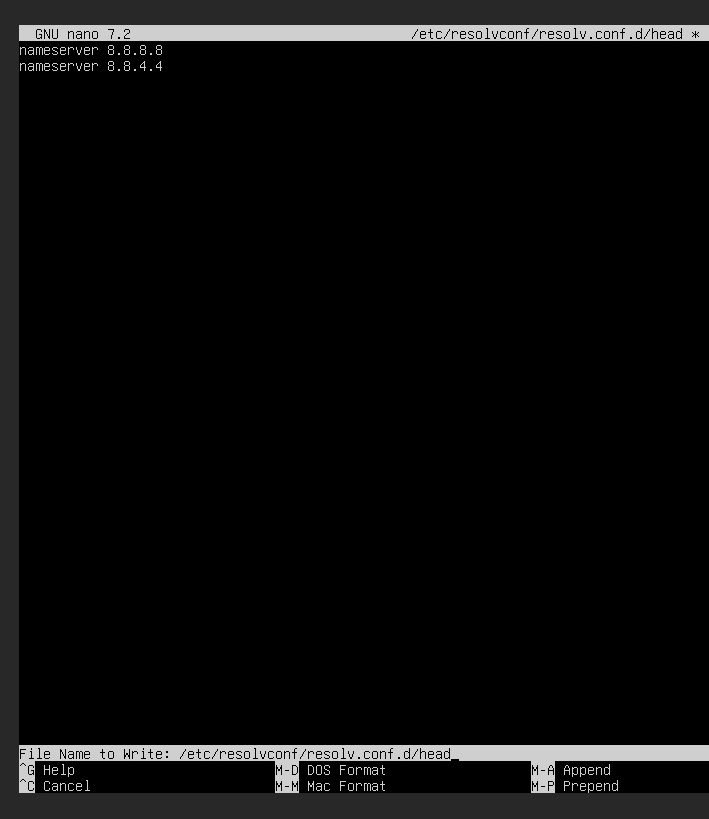
    Edit /etc/resolvconf/resolv.conf.d/head and add the following:

    #Make edits to /etc/resolvconf/resolv.conf.d/head.
    nameserver 8.8.4.4
    nameserver 8.8.8.8
    

    Save the changes and restart the systemd-resolved service as shown.

    sudo systemctl restart systemd-resolved.service
    

    It’s also prudent to check the status of the resolver and ensure that it is active and running as expected:

    sudo systemctl status systemd-resolved.service
    

    Then try pinging any website and the issue should be resolved even post reboot.

  • wrote on last edited by
    #3

    I won’t get it, can you help me with the installation🤣

  • I won’t get it, can you help me with the installation🤣

    wrote on last edited by
    #4

    @abcabc123 You just need to follow the steps I posted.

  • wrote on last edited by
    #5

    I won’t install resolvconf and won’t configure

  • wrote on last edited by
    #6

    I don’t even know how to find it, how to open the /etc/resolv.conf file

  • I won’t install resolvconf and won’t configure

    wrote on last edited by phenomlab
    #7

    @abcabc123 said in Ubuntu 22.04 to Ubuntu 24.04 Unable to ping:

    I won’t install resolvconf and won’t configure

    You mean you won’t complete the steps? If you don’t, then how to you expect to resolve the issue? If you follow the steps I posted (you can copy and paste) then this will fix the issue.

  • wrote on last edited by
    #8

    I copied and pasted in and it showed that the command didn’t exist 🤣

  • I copied and pasted in and it showed that the command didn’t exist 🤣

    wrote on last edited by
    #9

    @abcabc123 It does - you start with

    sudo apt install resolvconf
    
  • wrote on last edited by
    #10

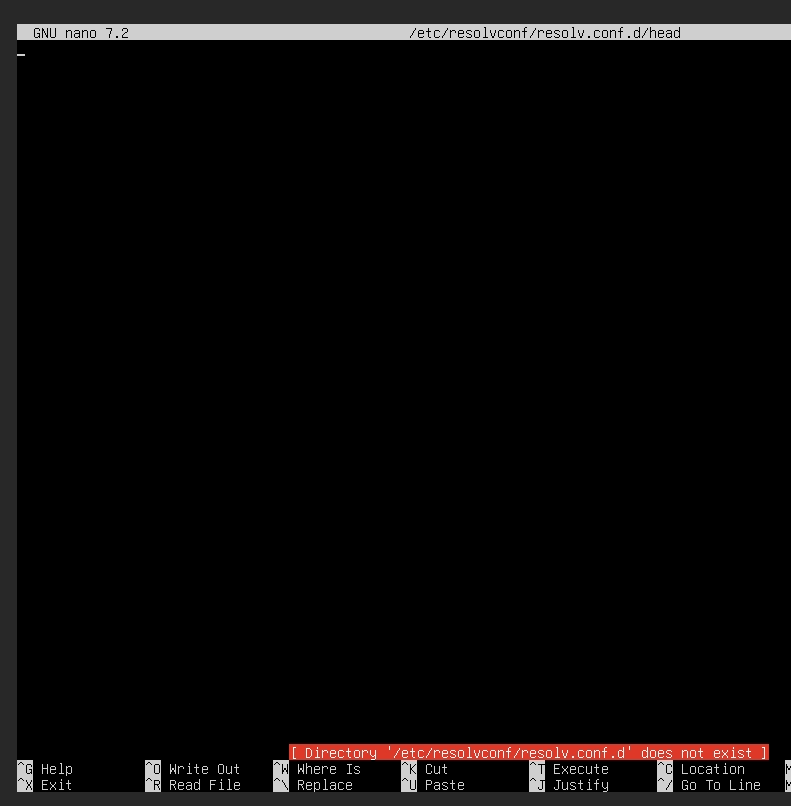
    screenshot-1736853376538.png
    Tossed for 24 hours, it still hasn’t been resolved, and the file can’t be saved.

  • screenshot-1736853376538.png
    Tossed for 24 hours, it still hasn’t been resolved, and the file can’t be saved.

    wrote on last edited by
    #11

    @abcabc123 are you using sudo to open the file? For example, sudo nano /etc/resolvconf/resolv.conf.d/head

  • wrote on last edited by
    #12

    screenshot-1736853376538.png

  • wrote on last edited by
    #13
    This post is deleted!
  • wrote on last edited by
    #14

    screenshot-1736854117915.png

  • wrote on last edited by
    #15

    screenshot-1736854117915.png

  • wrote on last edited by
    #16

    @abcabc123 Hmm - ok. Let’s try this instead

    To set a permanent DNS on the latest version of Ubuntu (e.g., Ubuntu 22.04 or later), you typically configure DNS settings via Netplan, the network configuration tool. Here’s how you can do it:


    1. Locate the Netplan Configuration File

    Netplan configuration files are located in the /etc/netplan/ directory. Typically, the file is named something like 01-netcfg.yaml or 50-cloud-init.yaml. Use the following command to list the files:

    ls /etc/netplan/
    

    2. Edit the Configuration File

    Open the appropriate Netplan file for editing. For example:

    sudo nano /etc/netplan/01-netcfg.yaml
    

    3. Modify the DNS Configuration

    Add or modify the nameservers section under the relevant interface. Your file might look like this:

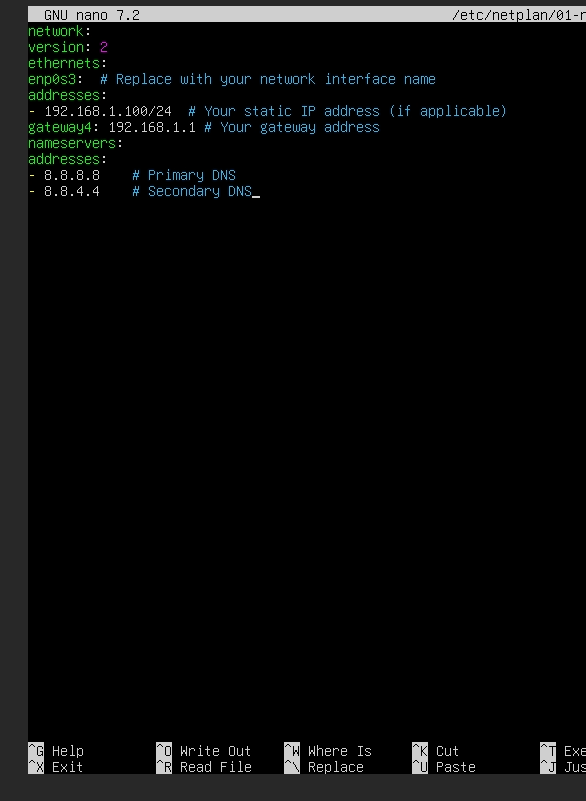
    network:
      version: 2
      ethernets:
        enp0s3:  # Replace with your network interface name
          addresses:
            - 192.168.1.100/24  # Your static IP address (if applicable)
          gateway4: 192.168.1.1 # Your gateway address
          nameservers:
            addresses:
              - 8.8.8.8    # Primary DNS
              - 8.8.4.4    # Secondary DNS
    
    • Replace enp0s3 with your actual network interface name, which you can find using:

      ip a
      
    • Adjust the DNS servers (8.8.8.8, 8.8.4.4) to your preference.


    4. Apply the Configuration

    Save the file and apply the changes:

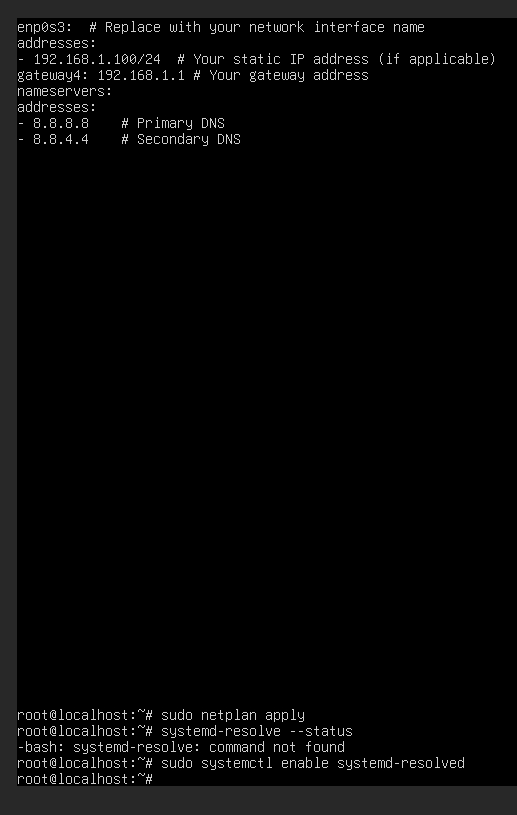
    sudo netplan apply
    

    5. Verify the DNS Configuration

    Confirm that the DNS settings are applied:

    systemd-resolve --status
    

    Look for the DNS Servers under your active interface.


    Additional Notes:

    • If you use NetworkManager (common on desktop installations), you can configure DNS through the GUI or by editing /etc/NetworkManager/NetworkManager.conf.

    • If your system uses systemd-resolved, ensure it’s enabled and running:

      sudo systemctl enable systemd-resolved
      sudo systemctl start systemd-resolved
      

    This setup ensures the DNS settings persist across reboots. Let me know if you run into any issues!

  • wrote on last edited by
    #17

    screenshot-1736854117915.png
    Is that right?

  • screenshot-1736854117915.png
    Is that right?

    wrote on last edited by
    #18

    @abcabc123 Looks correct, yes.

  • wrote on last edited by
    #19

    screenshot-1736854117915.png
    It’s too complicated, I’m new to linux

  • wrote on last edited by
    #20

    Ubuntu 22.04 operating system Can you install nodebb forum


Related Topics
  • To the Window to the Linux . . .

    Pinned Linux arch linux windows endoflife
    22
    19 Votes
    22 Posts
    8k Views
    Madchatthew
    @phenomlab said: @Madchatthew ouch. Sounds nasty. Did you get to the bottom of why it happened? I believe it is due to not everything getting upgraded because i wasn’t checking on the different packages I had installed from the AUR. Then when I ran yay it was like, hey would you like to update all of these things that you haven’t updated in months, perhaps years or ever for that matter and I was like yes please If you don’t have yay there are no notifications that you need more updates than what you realize. Chrome was staying updated because it would give me a notification, but there was the nvidia package that needed to be upgraded as well and I had never upgraded it. I didn’t realize it and should have. Then some of those packages use cmake and that needed to be updated as well. So using yay is beneficial to make sure you get all the updates you need.
  • Arch Linux | Reflector

    Linux arch linux pacman reflector updates
    4
    4 Votes
    4 Posts
    6k Views
    Madchatthew
    I have another update for reflector that I just figured out. You will want to edit the following file and add details to make sure that every time it updates the mirror list, it is grabbing them from your country and I grab 10 and sort them by rate. This will ensure that your mirrorlist isn’t getting populated with links from other countries which can slow down you downloads. sudo nano /etc/xdg/reflector/reflector.conf This is what the file looks like. # Reflector configuration file for the systemd service. # # Empty lines and lines beginning with "#" are ignored. All other lines should # contain valid reflector command-line arguments. The lines are parsed with # Python's shlex modules so standard shell syntax should work. All arguments are # collected into a single argument list. # # See "reflector --help" for details. # Recommended Options # Set the output path where the mirrorlist will be saved (--save). --save /etc/pacman.d/mirrorlist # Select the transfer protocol (--protocol). --protocol https # Select the country (--country). # Consult the list of available countries with "reflector --list-countries" and # select the countries nearest to you or the ones that you trust. For example: --country US # Use only the most recently synchronized mirrors (--latest). --latest 10 # Sort the mirrors by synchronization time (--sort). --sort rate Here are the different flag options that you can change or add to this file. I found this on google by searching arch linux reflector flags. Filtering Options (What to find) --country <CODE/Name>: Selects mirrors from specific countries (e.g., US, France,Germany). Use {Link: reflector --list-countries https://archlinux.org/mirrors/status/}, for a full list. --protocol <http|https>: Filters for HTTP or HTTPS mirrors. --age <hours>: Only includes mirrors synced within the last X hours (e.g., --age 12). --delay <hours>: Limits to mirrors with a reported sync delay of X hours or less (e.g., --delay 0.25 for 15 mins). --latest <N>: Limits results to the top N newest mirrors. Sorting Options (How to order) --sort rate: Sorts by download speed (requires testing, can be slow). --sort age: Sorts by most recently synced. --sort score: Sorts by overall score. --sort country: Sorts by country, useful with multiple countries. Output Options (Where to put it) --save <path>: Writes the filtered/sorted list to a file (e.g., /etc/pacman.d/mirrorlist). --verbose or -v: Shows detailed progress and mirror info.
  • Linux on a Stick

    Linux linux usb arch
    29
    16 Votes
    29 Posts
    12k Views
    Madchatthew
    @DownPW I haven’t tried either of those, I am sure they run fast as well. Linux is so versatile it is awesome!
  • Linux Certification

    Linux linux certs
    4
    2 Votes
    4 Posts
    2k Views
    phenomlab
    @Madchatthew You might be sorry you asked This is the mentoring category below. Presently, it’s unused, but we have a dedicated area for it. https://sudonix.org/category/8/mentoring Other services https://sudonix.org/services
  • 3 Votes
    30 Posts
    12k Views
    phenomlab
    @DownPW any update?
  • 4 Votes
    11 Posts
    4k Views
    phenomlab
    @Hari Really? Can you elaborate a bit more here?
  • Ubuntu Upgrade All Packages

    Solved Linux mangodb sudonix
    3
    3 Votes
    3 Posts
    2k Views
    cagatay
    @phenomlab Upgraded, everything works
  • Need help with ping in linux

    Locked Linux ping ubuntu
    16
    5 Votes
    16 Posts
    6k Views
    phenomlab
    Note to everyone else here. This user was formally banned from metabullet.com for abusing the service, and as a result, has been banned here also. Quite why this person thought it was ok to come here under the guise of an account he’d previously used at metabullet.com and hope I wouldn’t notice is beyond me. If you abuse my services once, you won’t get to use them again - period. As a reminder, the policies surrounding this service, and it’s usage can be found here