Want to use Sudonix themes ?
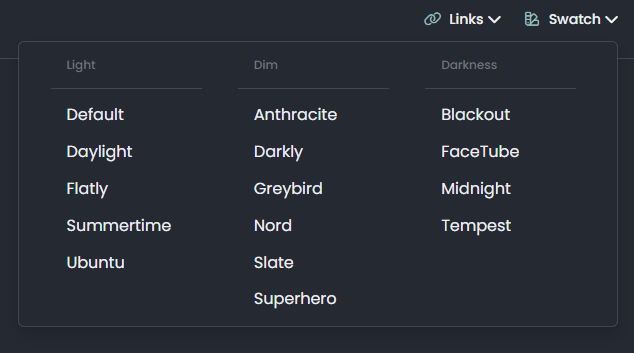
-
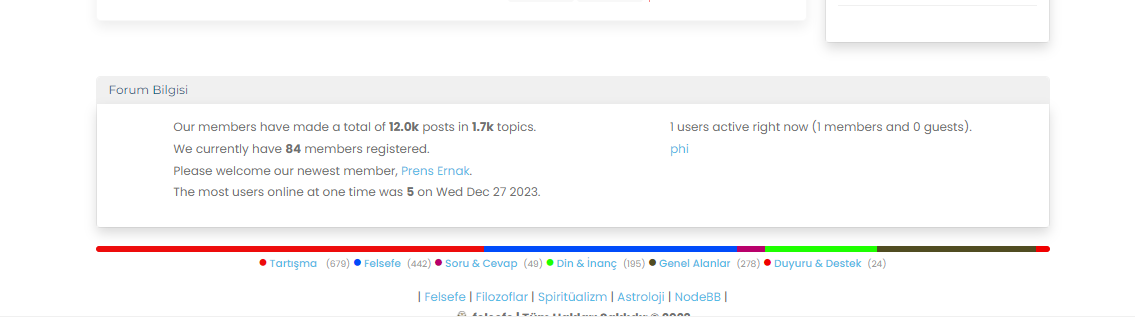
here mine

-
 undefined phenomlab unpinned this topic on
-
Mark hi,
I would like to use your color which you are using now. Post,background, topic etc.
Could you please help me? -
Mark hi,
I would like to use your color which you are using now. Post,background, topic etc.
Could you please help me?@cagatay Can you elaborate a bit more?
-
Such as the background color used, the frame and color of the topics and the fonts. I want it to be on my site like on Sudonix.
-
Such as the background color used, the frame and color of the topics and the fonts. I want it to be on my site like on Sudonix.
@cagatay Structurally, Sudonix is now a significant departure from the stock Harmony theme and makes several adjustments to layout, logos etc. Because of this, your site will not look as it should post code implementation, therefore, I’d advise against going for a direct copy of the code, but to focus on setting the CSS to be how you’d like in terms of colours etc.
Your own site has quite a high level of customisation, and this would effectively be lost if you chose the direct replacement route.
-
so whats your suggest to me, do not change anything or replace and lost all sor Sudonix theme?
-
so whats your suggest to me, do not change anything or replace and lost all sor Sudonix theme?
@cagatay You can replace the CSS, although if you take the latest code from Sudonix, this will reference objects as variables that do not exist on your site and will therefore fail to render properly. My suggestion here would be to select the colour scheme you like and replicate the CSS for this manually on your own site.
-
got your point thank you will do.
-
could you please share css path for your web site.
-
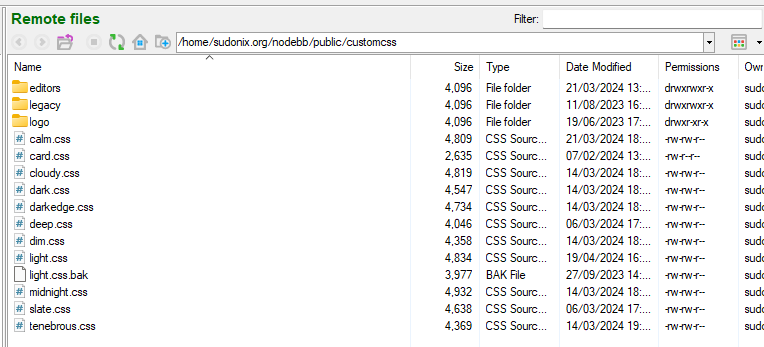
@cagatay Sure. Here’s the light theme CSS file
https://sudonix.org/assets/customcss/light.css
Others are as below
-
Mark hi
How can i change the new topic area as yours?
yours;

-
@cagatay You can target the CSS and see how it is constructed. You probably need the revised CSS and theme files.
CSS is below
.btn-primary, .btn-light { --bs-btn-active-bg: var(--bs-node-btn-active-bg); --bs-btn-active-border-color: var(--bs-node-btn-active-border); --bs-btn-bg: var(--bs-node-btn-bg); --bs-btn-border-color: var(--bs-node-btn-border); --bs-btn-box-shadow: none; --bs-btn-color: var(--bs-node-btn-color); --bs-btn-hover-bg: var(--bs-node-btn-active-bg); --bs-btn-hover-border-color: var(--bs-node-btn-active-border); font-size: 14px; padding: 4px 8px; background: var(--bs-btn-bg); } -
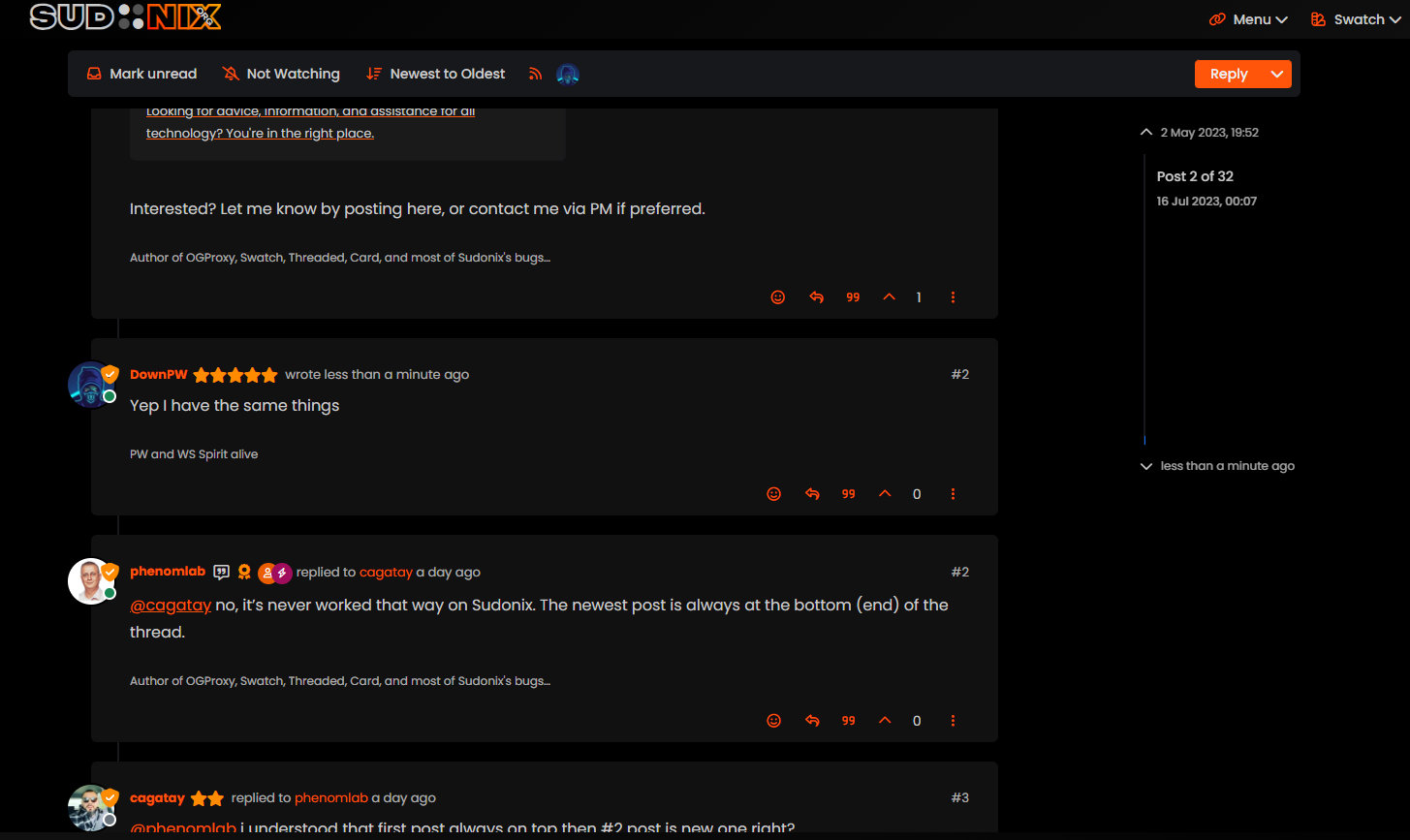
Mark, I think you changed the format of the forum’s message list.
The last article I wrote on this topic appears in the middle of the list. -
Not on my side it doesn’t and I’ve not changed anything. Can you send a screenshot?
Mark Cutting also advises organisations as a Fractional CIO, Fractional CISO and Executive Advisor, helping boards improve technology governance, cyber resilience and executive decision making. Learn more at Phenomlab Ltd
-
Not on my side it doesn’t and I’ve not changed anything. Can you send a screenshot?
@phenomlab i understood that first post always on top then #2 post is new one right?
-
@phenomlab i understood that first post always on top then #2 post is new one right?
@cagatay no, it’s never worked that way on Sudonix. The newest post is always at the bottom (end) of the thread.
-
Yep I have the same things.
EDIT : I mean same problem as cagatay
PW and WS Spirit alive
-
@DownPW Hmm. That’s different to what I see. Let me have a look.
EDIT: How odd, I don’t remember changing this value
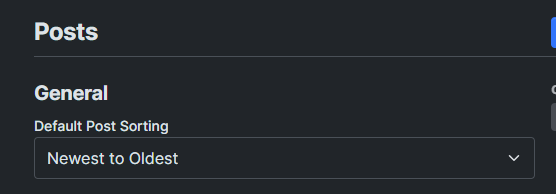
It’s been changed now to “Oldest to Newest”.
-
-
@DownPW There are two places this can be changed. In the ACP, and also in your profile. Strange though as I do not recall changing the global setting.


Hello! It looks like you're interested in this conversation, but you don't have an account yet.
Getting fed up of having to scroll through the same posts each visit? When you register for an account, you'll always come back to exactly where you were before, and choose to be notified of new replies (either via email, or push notification). You'll also be able to save bookmarks and upvote posts to show your appreciation to other community members.
With your input, this post could be even better 💗
Register Login