[NODEBB] Help for my custom CSS
-
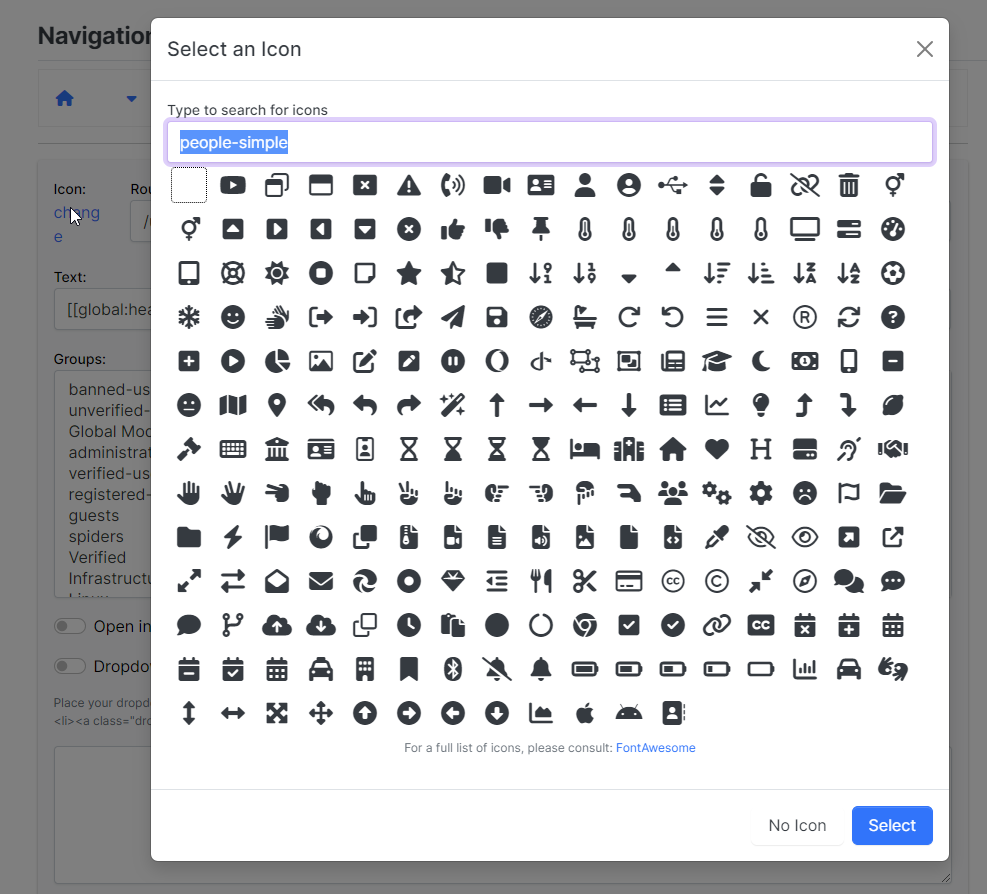
Mark, the situation is that since I used your CSS files, I don’t even have the Frontawese folder. Because of that, I really need your direct help. I’d really appreciate it if you could take a look whenever you have some free time.
-
Hi Mark, hope you’re doing well. Are you going to be able to help me with this?
-
@cagatay Just looking at this now. Do you have a FA Pro 6 license, or are you trying to use the free version? It’s not immediately clear, and the directory structure on your server is a mess to be honest. Not sure what has happened here.
EDIT - I have it working. DM me.
Mark Cutting also advises organisations as a Fractional CIO, Fractional CISO and Executive Advisor, helping boards improve technology governance, cyber resilience and executive decision making. Learn more at Phenomlab Ltd
-
thank you Mark.
-
-
i do not know
 Mark resolved.
 -
so what is the problem of @cagatay mark @phenomlab ?
@DownPW the FA library was missing with no paths defined. I’ve set these in the headers and uploaded the source, including necessary shim files which resolves the issue.
-
OK
Likely deleted by mistake from the NodeBB ACP headers.PW and WS Spirit alive
-
-
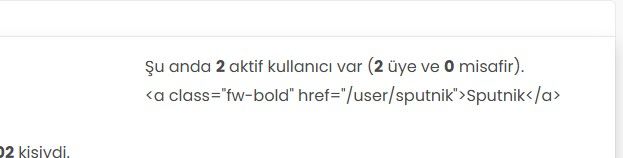
Hi, the active users are not showing correctly. Instead of the usernames, I’m seeing code. What should I do to fix this?
-
Hi, the active users are not showing correctly. Instead of the usernames, I’m seeing code. What should I do to fix this?
@cagatay sorry for late response. This looks too be one of the widgets, and I’m wondering if you have custom code that targets this.
Had this recently happened after an upgrade or other changes?




Hello! It looks like you're interested in this conversation, but you don't have an account yet.
Getting fed up of having to scroll through the same posts each visit? When you register for an account, you'll always come back to exactly where you were before, and choose to be notified of new replies (either via email, or push notification). You'll also be able to save bookmarks and upvote posts to show your appreciation to other community members.
With your input, this post could be even better 💗
Register Login