Custom html in nodebb to prevent cache
-
I wish to stop browser cash to force nodebb to rerun custom css everytime page is refreshed
(as it picks different random image as background)
Theres place for custom css / js
But where to put this htmlCache-Control: no-cacheI tried it in a few places but it didnt work
On further googling do I need all these lines?
<meta http-equiv="Cache-Control" content="no-cache, no-store, must-revalidate">
<meta http-equiv="Pragma" content="no-cache">
<meta http-equiv="Expires" content="0">
I tried that in Custom Header, didnt work either
-
Strange update with incognito browser it doesnt cache, and shows different background every time.
But oddly the forum text is different color and looks blurred with icognito -
I wish to stop browser cash to force nodebb to rerun custom css everytime page is refreshed
(as it picks different random image as background)
Theres place for custom css / js
But where to put this htmlCache-Control: no-cacheI tried it in a few places but it didnt work
On further googling do I need all these lines?
<meta http-equiv="Cache-Control" content="no-cache, no-store, must-revalidate">
<meta http-equiv="Pragma" content="no-cache">
<meta http-equiv="Expires" content="0">
I tried that in Custom Header, didnt work either
@Panda said in Custom html in nodebb to prevent cache:
On further googling do I need all these lines?
Yes, they are all necessary.
-
Strange update with incognito browser it doesnt cache, and shows different background every time.
But oddly the forum text is different color and looks blurred with icognito@Panda said in Custom html in nodebb to prevent cache:
Strange update with incognito browser it doesnt cache, and shows different background every time.
But oddly the forum text is different color and looks blurred with icognitoIncognito is exactly that. It doesn’t cache anything, which is what it’s supposed to do. Are you using a desktop or chrome for this? Also, is your webserver nginx ?
Mark Cutting also advises organisations as a Fractional CIO, Fractional CISO and Executive Advisor, helping boards improve technology governance, cyber resilience and executive decision making. Learn more at Phenomlab Ltd
-
@Panda said in Custom html in nodebb to prevent cache:
Strange update with incognito browser it doesnt cache, and shows different background every time.
But oddly the forum text is different color and looks blurred with icognitoIncognito is exactly that. It doesn’t cache anything, which is what it’s supposed to do. Are you using a desktop or chrome for this? Also, is your webserver nginx ?
@phenomlab so nodebb hosted so Im not using any nginx etc
Can you tell me if aignite.nodebb.com looks very different for you on mobile chrome, in incognito browser?
In my incognito, some text barely readable!Also still caching on normal mobile browser despite all those lines in custom header
-
@phenomlab so nodebb hosted so Im not using any nginx etc
Can you tell me if aignite.nodebb.com looks very different for you on mobile chrome, in incognito browser?
In my incognito, some text barely readable!Also still caching on normal mobile browser despite all those lines in custom header
@Panda if it’s hosted NodeBB then I’m 99% sure that they will be using nginx. Nginx itself will cache static assets - css being one of them, so what you are experiencing is normal behavior, and the
cache-controlheaders you have defined with have virtually zero effect when they are already set by nginx itself.On a desktop, you can force the browser to clear that cache for that specific site by pressing f12 to open the developers console, then left click and hold on the reload button in the browser
After and one second you’ll see three options. You want the third, which is “Clear cache and reload”
I know you use your phone to do most things, but I can tell you now that it’s almost impossible to develop in this way and it needs to be done via a PC or laptop.
-
@phenomlab so nodebb hosted so Im not using any nginx etc
Can you tell me if aignite.nodebb.com looks very different for you on mobile chrome, in incognito browser?
In my incognito, some text barely readable!Also still caching on normal mobile browser despite all those lines in custom header
@Panda said in Custom html in nodebb to prevent cache:
Can you tell me if aignite.nodebb.com looks very different for you on mobile chrome, in incognito browser?
What I can tell you is that the white overlay with the lime green text doesn’t work. It’s virtually illegible and not pleasing to the eye at all.
Mark Cutting also advises organisations as a Fractional CIO, Fractional CISO and Executive Advisor, helping boards improve technology governance, cyber resilience and executive decision making. Learn more at Phenomlab Ltd
-
@Panda said in Custom html in nodebb to prevent cache:
Can you tell me if aignite.nodebb.com looks very different for you on mobile chrome, in incognito browser?
What I can tell you is that the white overlay with the lime green text doesn’t work. It’s virtually illegible and not pleasing to the eye at all.
@phenomlab yes, but the point about browser cache on mobile, I want the users to get a different background pic each time.
So I know I an manually clear cache, but the users shouldnt need to know about that.
-
@phenomlab yes, but the point about browser cache on mobile, I want the users to get a different background pic each time.
So I know I an manually clear cache, but the users shouldnt need to know about that.
@Panda how are you issuing the image? If you use
JSto do this, you won’t need to worry about browser cache. It’s a little unclear as to what you currently have in place.Mark Cutting also advises organisations as a Fractional CIO, Fractional CISO and Executive Advisor, helping boards improve technology governance, cyber resilience and executive decision making. Learn more at Phenomlab Ltd
-
@Panda how are you issuing the image? If you use
JSto do this, you won’t need to worry about browser cache. It’s a little unclear as to what you currently have in place.@phenomlab
Just css with a random image url
You have login, take a look? -
@phenomlab
Just css with a random image url
You have login, take a look?@Panda I’m not in front of a PC presently, but can look tomorrow.
Mark Cutting also advises organisations as a Fractional CIO, Fractional CISO and Executive Advisor, helping boards improve technology governance, cyber resilience and executive decision making. Learn more at Phenomlab Ltd
-
@phenomlab the forum looking so different on incognito and standard browser is so weird.
(This is on Android device)
Its like the Neon theme is much more Neon on the incognito, and the text is hard to read! -
@phenomlab the forum looking so different on incognito and standard browser is so weird.
(This is on Android device)
Its like the Neon theme is much more Neon on the incognito, and the text is hard to read!@Panda said in Custom html in nodebb to prevent cache:
Its like the Neon theme is much more Neon on the incognito, and the text is hard to read!
Incognito mode will always reflect the current state of affairs as it will not cache anything. If it looks bad in this session, this is how others will see it also.
-
@Panda What I see on checking the site is this
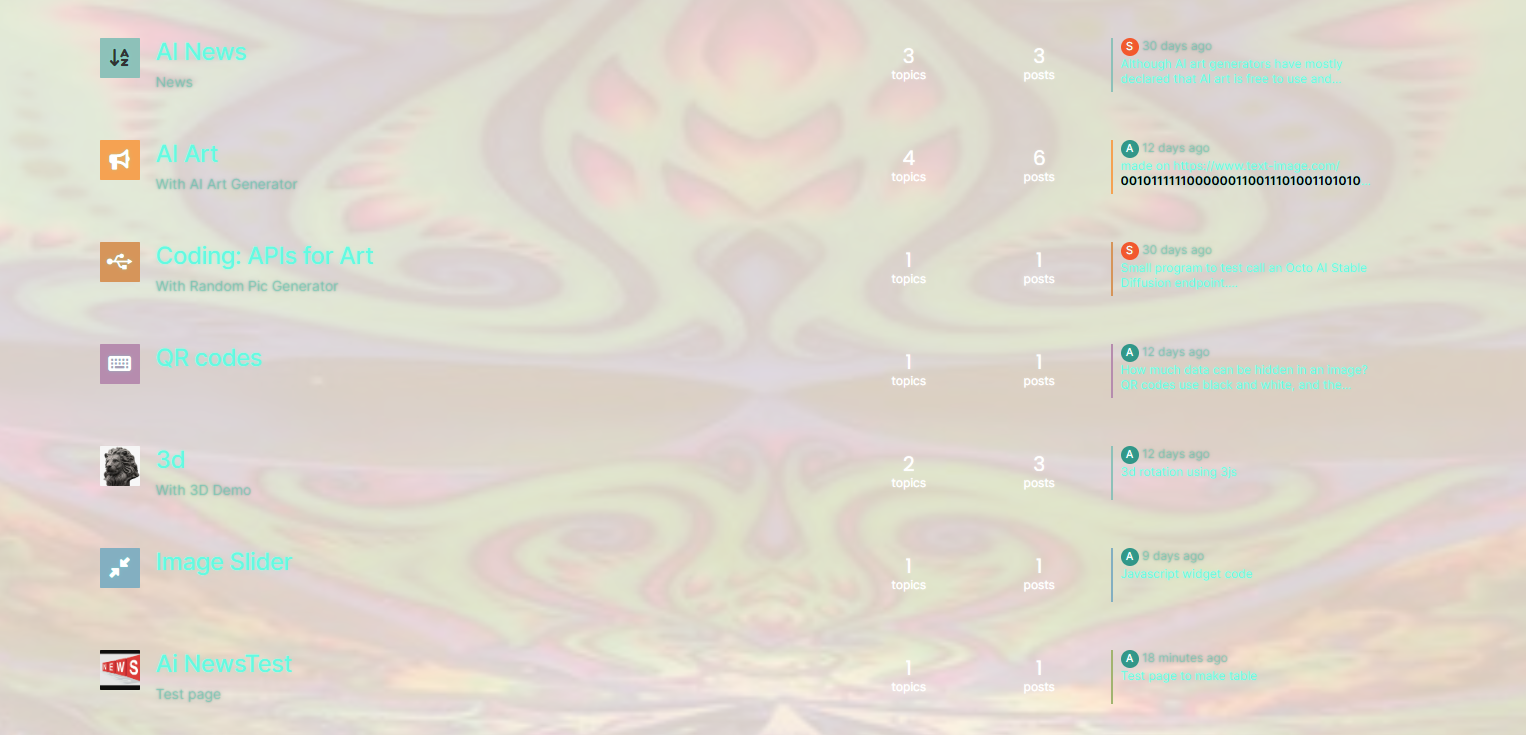
It looks psychedelic and the colours do not work at all.
Mark Cutting also advises organisations as a Fractional CIO, Fractional CISO and Executive Advisor, helping boards improve technology governance, cyber resilience and executive decision making. Learn more at Phenomlab Ltd
-
@Panda What I see on checking the site is this
It looks psychedelic and the colours do not work at all.
@phenomlab yes, but skins / themes arent supposed to cache.
So my main issue here is why was it looking different?
I’ve changed skin now, but still want to get round this caching, as still have problem on normal broswer that I dont get new background image every time browser bar refreshed -
@phenomlab yes, but skins / themes arent supposed to cache.
So my main issue here is why was it looking different?
I’ve changed skin now, but still want to get round this caching, as still have problem on normal broswer that I dont get new background image every time browser bar refreshed@Panda said in Custom html in nodebb to prevent cache:
yes, but skins / themes arent supposed to cache.
They will cache by default - by NGINX, and not anything you choose to put in the headers. The code you specified there would apply to the entire site, which defeats the purpose of using a cache to speed up delivery of assets that the browser already has. Even without the case in Incognito mode, the experience is awful because most of the text is unreadable.
The point you made about fonts looking blurry is because of the presence of
text-shadowas a CSS element. This technique is used to made text stand out by using a drop shadow of another colour. This now clashes with the changes you have made and makes the text look blurry. -
So if I cant prevent cache, how do I achieve different background each time?
-
@Panda You’ll need to do that with
js. With some quick CSS changes, it looks like this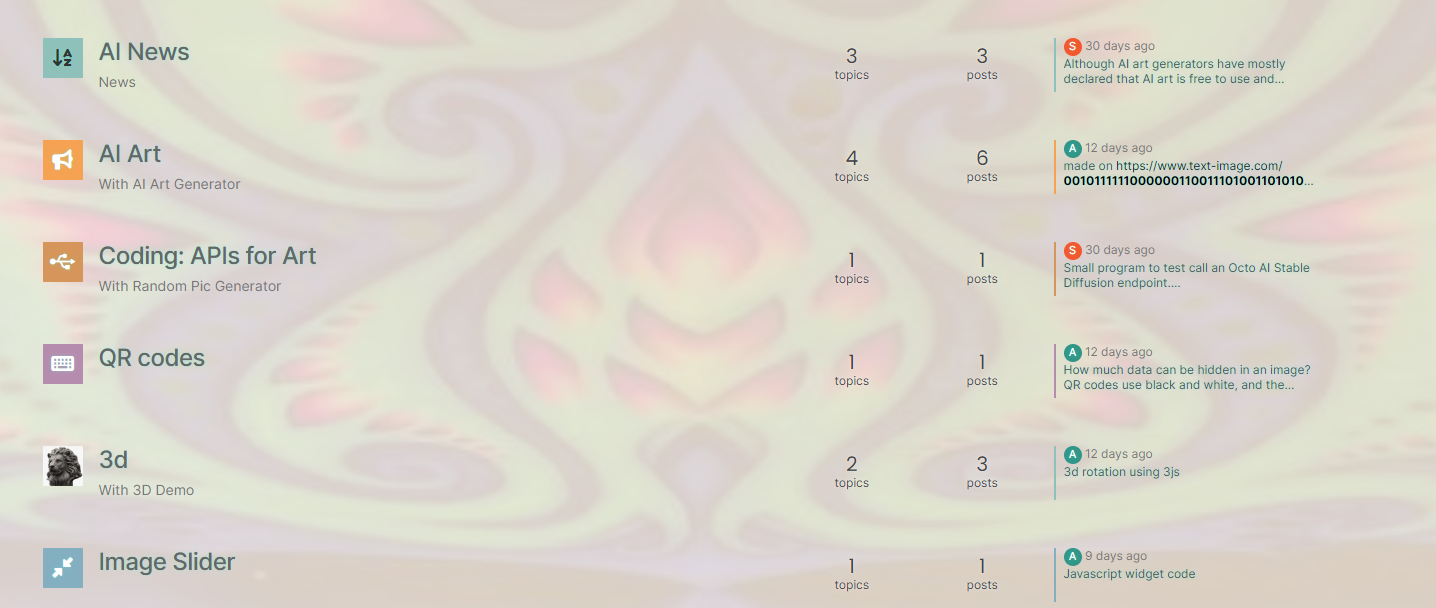
The colour choice is still really hard on the eye, but at least you can now read the text


Hello! It looks like you're interested in this conversation, but you don't have an account yet.
Getting fed up of having to scroll through the same posts each visit? When you register for an account, you'll always come back to exactly where you were before, and choose to be notified of new replies (either via email, or push notification). You'll also be able to save bookmarks and upvote posts to show your appreciation to other community members.
With your input, this post could be even better 💗
Register LoginRelated Topics
-
-
-
-
-
-
-
Gettin Erors NodeBB
Solved Configure -