[NODEBB] Help for my custom CSS
-
-
The issue is closed @phenomlab
It’s a nodebb bug. Fixed in 2.5.3 milestone

@DownPW Yes, I saw that. Caused by regression from what I see.
Thanks
-
JS code seems not working but…
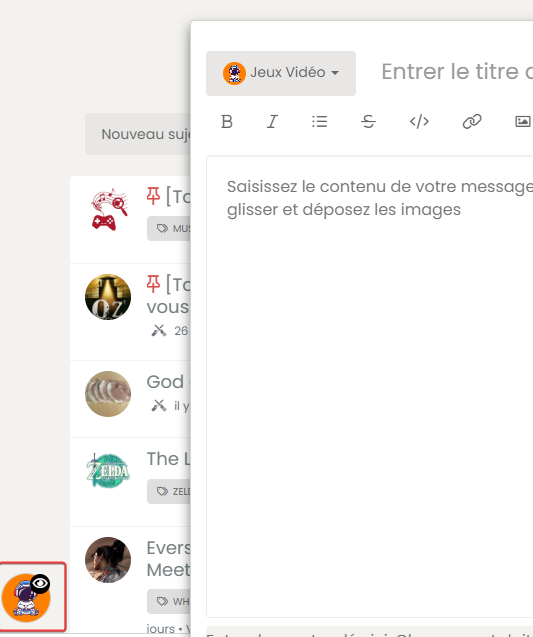
I see on ACP, the image of category is uploaded to imgur :
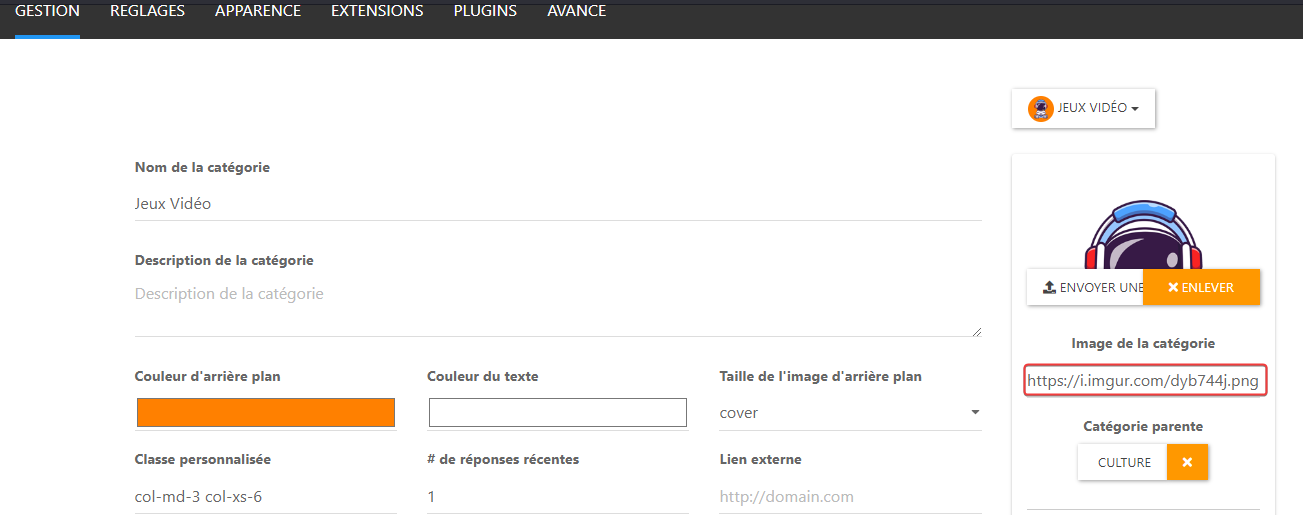
and I see this on dev console :
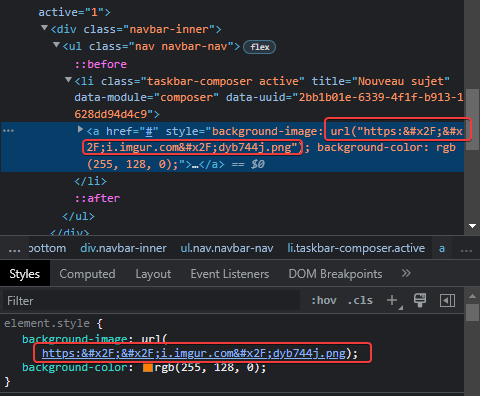
The url seems to not be encoded correctly, I don’t know why ???
If I change manually the URL in the dev console, it’s OK:
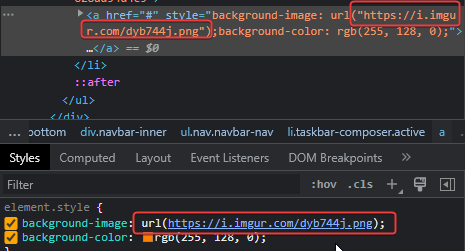
@DownPW said in [NODEBB] Help for my custom CSS:
JS code seems not working but…
Sorry, that should have been something like this (obviously modify the source and replacement)
$(document).ready(function() { $(window).on('action:ajaxify.end', function(data) { $(".row").find($(".fa")).removeClass('fa-fw fa-comments-o').addClass('fa-check-to-slot'); }); }); -
hi @phenomlab
on v2.x , I have user online widget in my home page and I can center the widget like this :

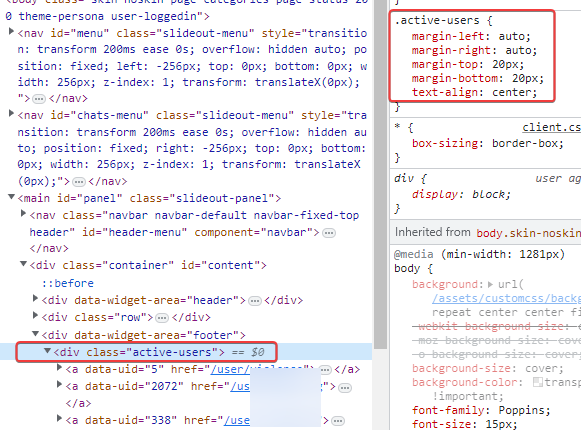
because we have a div by default on the widget
I can’t do the same on v3.x
Any idea how to get the same result ?
Thanks Dude
PW and WS Spirit alive
-
hi @phenomlab
on v2.x , I have user online widget in my home page and I can center the widget like this :
because we have a div by default on the widget
I can’t do the same on v3.x
Any idea how to get the same result ?
Thanks Dude
@DownPW I’d give the widget itself an
idand then add customcssto that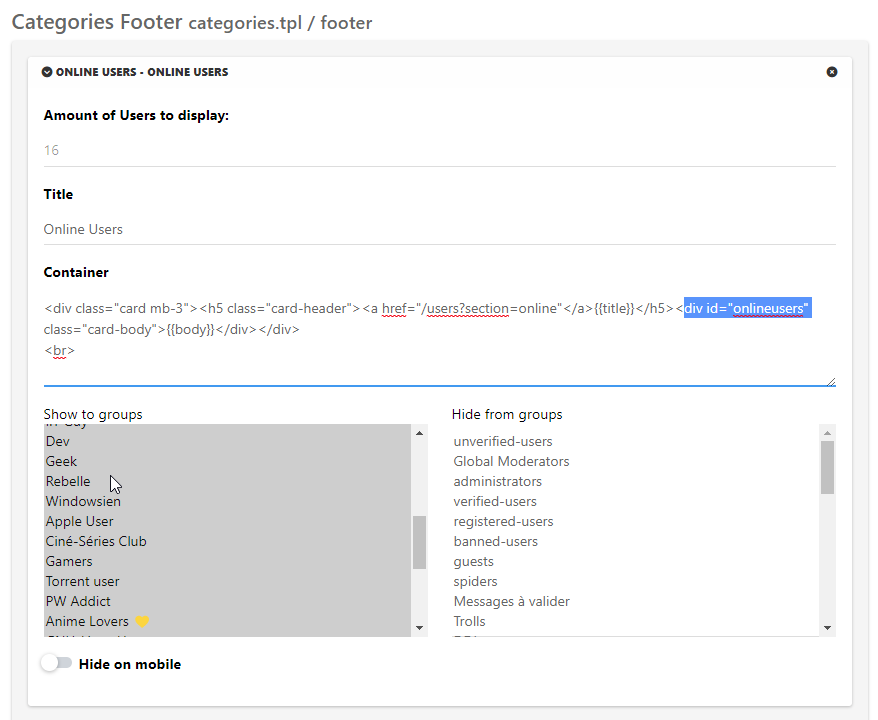
div#onlineusers {
    left: 0;
    right: 0;
    margin: 0 auto;
    position: relative;
}
-
Yep, it’s a good idea thanks to you but I’d like to display it without div card-header and body like the first screen
PW and WS Spirit alive
-
Yep, it’s a good idea thanks to you but I’d like to display it without div card-header and body like the first screen
@DownPW In that case, change the
containercode to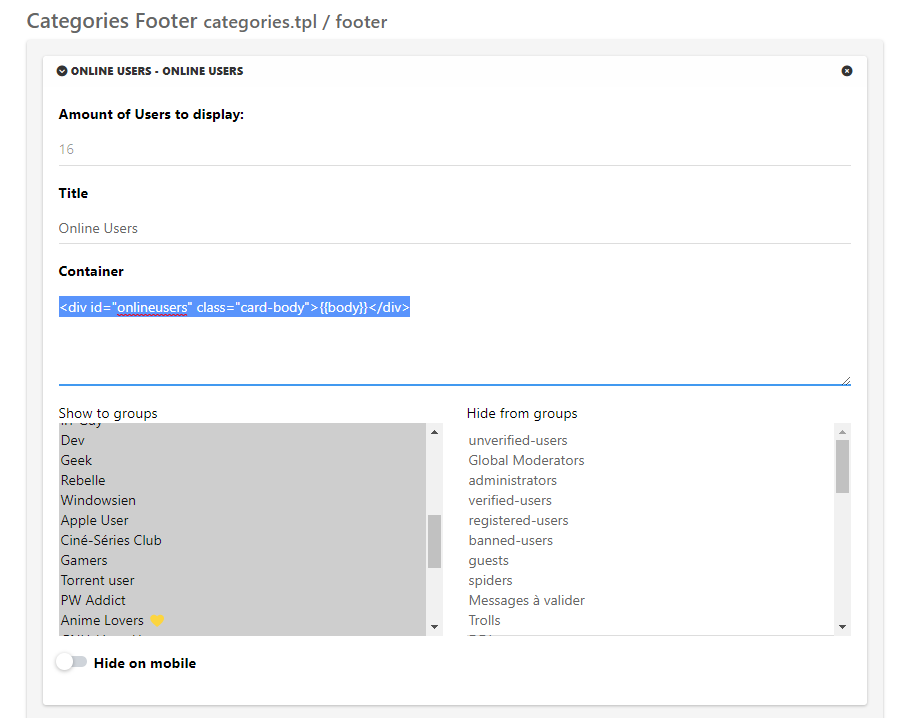
<div id="onlineusers">{{body}}</div>And same CSS class
div#onlineusers {
    justify-content: center;
    display: flex;
}
Then add
paddingandmarginto suit -
Perfect my friend
-
Hello mark

I wanted for test purposes, to put the welcome message in the Brand menu in the header widget.
I commented in the footer widget the corresponding code then I added it in my brand header widget:
<span id="thisuser" class="getUsername">, <a href="/me"><span class="username">DownPW</span></a></span>I commented out the old CSS to add the new:
/* Welcome Message Username on Header */
span#thisuser {
     margin-top: 0.7rem;
     margin-left: 2px;
     margin-right:-2px;
     font-size: .875rem;
     line-height: 1.4rem;
     font-weight: 500;
}
So far everything is fine, the result is correct :

But as soon as I select links in the left sidebar (home, recent, etc …), the message is added and displayed as many times as I select a link .
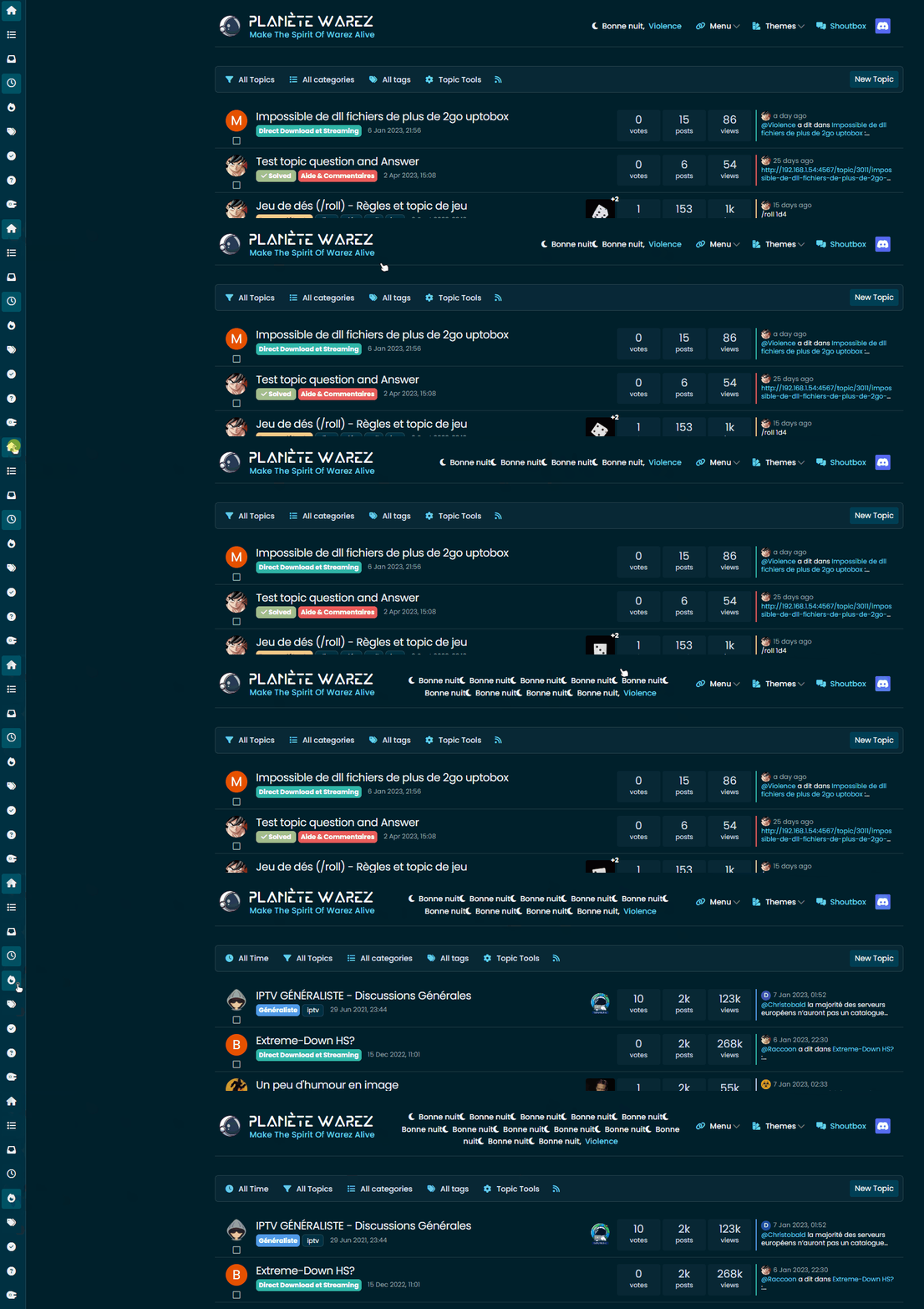
Did I miss something or do you have an idea to solve this bug?
Thanks my friend
PW and WS Spirit alive
-
Hello mark
I wanted for test purposes, to put the welcome message in the Brand menu in the header widget.
I commented in the footer widget the corresponding code then I added it in my brand header widget:
<span id="thisuser" class="getUsername">, <a href="/me"><span class="username">DownPW</span></a></span>I commented out the old CSS to add the new:
/* Welcome Message Username on Header */
span#thisuser {
     margin-top: 0.7rem;
     margin-left: 2px;
     margin-right:-2px;
     font-size: .875rem;
     line-height: 1.4rem;
     font-weight: 500;
}
So far everything is fine, the result is correct :
But as soon as I select links in the left sidebar (home, recent, etc …), the message is added and displayed as many times as I select a link .
Did I miss something or do you have an idea to solve this bug?
Thanks my friend
@DownPW sorry for the delay. That is being caused by
ajaxwhich is adding another element each time data is being called. I’d need to see the entire code block where you are adding this to confirm, but from the video you provided, that’s typically caused by the above.You only need that specific function to run once at page load - it’s running each time data is being requested which explains the additions.
-
it’s just the brand HTML header widget, just add this code to him
<span id="thisuser" class="getUsername">, <a href="/me"><span class="username">DownPW</span></a></span>]What do you want ? The HTML header widget on welcome message JS code ?
EDIT : All code in PM
PW and WS Spirit alive
-
it’s just the brand HTML header widget, just add this code to him
<span id="thisuser" class="getUsername">, <a href="/me"><span class="username">DownPW</span></a></span>]What do you want ? The HTML header widget on welcome message JS code ?
EDIT : All code in PM
@DownPW thanks. Can you try a theory for me and change that code so it looks like the below
<span id="thisuserbrand" class="getUsername">, <a href="/me"><span class="username">DownPW</span></a></span>I expect this to return nothing, which will prove my theory around the Ajax calls.
-
-
Nope @phenomlab
Same things, same problem
@DownPW then the problem isn’t the existing function. That ID I provided doesn’t exist anywhere and isn’t tied to any elements so should never trigger.
-
oups don’t know why I have used this code, replace by :
<div class="getUsername">, <a href="/me"><span class="username"></span></a></div>But same problem
PW and WS Spirit alive
-
oups don’t know why I have used this code, replace by :
<div class="getUsername">, <a href="/me"><span class="username"></span></a></div>But same problem
@DownPW did you remove the original line from the footer before placing it in the brand header?
-
remove no, but commented like this
<!-- <span id="thisuser" class="getUsername">, <a href="/me"><span class="username">DownPW</span></a></span> -->EDIT: test with remove = same
PW and WS Spirit alive
-
remove no, but commented like this
<!-- <span id="thisuser" class="getUsername">, <a href="/me"><span class="username">DownPW</span></a></span> -->EDIT: test with remove = same
@DownPW can you send me the footer function your are using. I’m 100% certain this is being caused by the
ajaxcall. -
remove no, but commented like this
<!-- <span id="thisuser" class="getUsername">, <a href="/me"><span class="username">DownPW</span></a></span> -->EDIT: test with remove = same
@DownPW can you change the top line of this function from
$(window).on('action:ajaxify.end', function (data) {To
$(document).ready() {Save and let me know if this changes anything. The theory here is that the Ajax call in the top line causes the
prependto be executed multiple times -
the code doesn’t work with this
PW and WS Spirit alive



Hello! It looks like you're interested in this conversation, but you don't have an account yet.
Getting fed up of having to scroll through the same posts each visit? When you register for an account, you'll always come back to exactly where you were before, and choose to be notified of new replies (either via email, or push notification). You'll also be able to save bookmarks and upvote posts to show your appreciation to other community members.
With your input, this post could be even better 💗
Register LoginDid this solution help you?
Related Topics
-
Please help me, I can't install nodebb
Locked Solved Customisation -
-
-
-
-
-
-