Skip to content

"Glass" (shine) effect on Sudonix logo

Let's Build It
7 4 2.1k 1
  • A few users have commented on the new shiny logo that appears at the top of the navbar here

    Want to know how I created that? Of course you do!

    The logo itself makes use of a few techniques such as webkit-background-clip and -webkit-text-stroke to make the font look like it has an outline only with no fill. This technique won’t appeal to everyone, so if you’re just looking for the shine code, you can skip this, and go straight to the jQuery code and CSS.

    Firstly, I actually hide the <img> so no actual logo is being displayed

    [component="brand/logo"] {
        display: none;
    }
    

    I then use a jQuery function to create my own Brand Logo

    $(document).ready(function() {
        $('[component="brand/wrapper"]').append('<a component="siteTitle" href="/" title="Brand Logo"><h1 class="fs-6 fw-bold text-body mb-0 shine">sudonix</h1></a>');
    });
    

    And then apply the below CSS to achieve the style I want. Note, that the :root values must be set on your site, or at the very least, alternatives if you are not using variables.

    :root {
          --bs-body-navbar: #E5E6E6;
          --bs-logo-bg: linear-gradient(45deg, #ff5733, #f73d45, #e54f6d, #c85e9e, #a874c0, #748bda, #4691f1, #0099f7);
          --bs-node-shine: linear-gradient(90deg, rgba(255, 255, 255, 0) 0%, rgba(255, 255, 255, 0.5) 50%, rgba(255, 255, 255, 0) 100%);
    }
    
    @keyframes shine {
        0% {
          left: -100%;
          opacity: 0;
        }
        5% {
          opacity: 1;
        }
        25% {
          left: 100%;
          opacity: 1;
        }
        26% {
          opacity: 0;
        }
        100% {
          left: 100%;
          opacity: 0;
        }
      }
    
    a[component=siteTitle] h1 {
        font-size: 2.2rem !important;
        top: -1px;
        position: fixed;
        font-family: "Bruno Ace SC";
        font-weight: 600 !important;
        letter-spacing: 0.05rem;
        -webkit-background-clip: text !important;
        color: var(--bs-body-navbar) !important;
        -webkit-text-stroke: 4px transparent;
        background: var(--bs-logo-bg);
        width: 172px;
        padding-left: 5px;
    }
    
    .shine::before {
        content: "";
        position: absolute;
        top: 10px;
        width: 60px;
        height: 25px;
        background: var(--bs-node-shine);
        transform: skewX(-45deg);
        animation: shine 10s linear infinite;
        pointer-events: none;
        mix-blend-mode: screen;
        z-index: 1;
    }
      
      .shine {
        position: relative;
        display: inline-block;
        color: transparent;
        background-clip: text;
        -webkit-background-clip: text;
        overflow: hidden;
      }
    

    I’ve also included a CodePen so you can see this working in realtime

    https://codepen.io/phenomlab/pen/gbbYWrZ?editors=1100

  • phenomlabundefined phenomlab referenced this topic on
  • Looking great Mark!

  • Many thnaks.

    I’ll have to take a look because for now, the result is meh 🙂
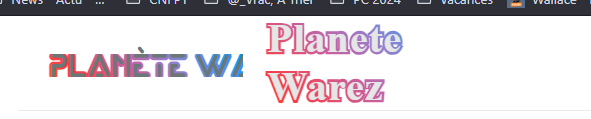
    2 tittles

    image.png

  • Many thnaks.

    I’ll have to take a look because for now, the result is meh 🙂
    2 tittles

    image.png

    @DownPW Is this on your DEV server?

  • @phenomlab i cant do it why i dont understand. 😞 something added wrong think so.

  • @DownPW Is this on your DEV server?

    @phenomlab said in "Glass" (shine) effect on Sudonix logo:

    @DownPW Is this on your DEV server?

    Nope. Prod Server

    Seems to be better after some CSS modification : police position, etc…
    Or display: none on CSS title class if needed

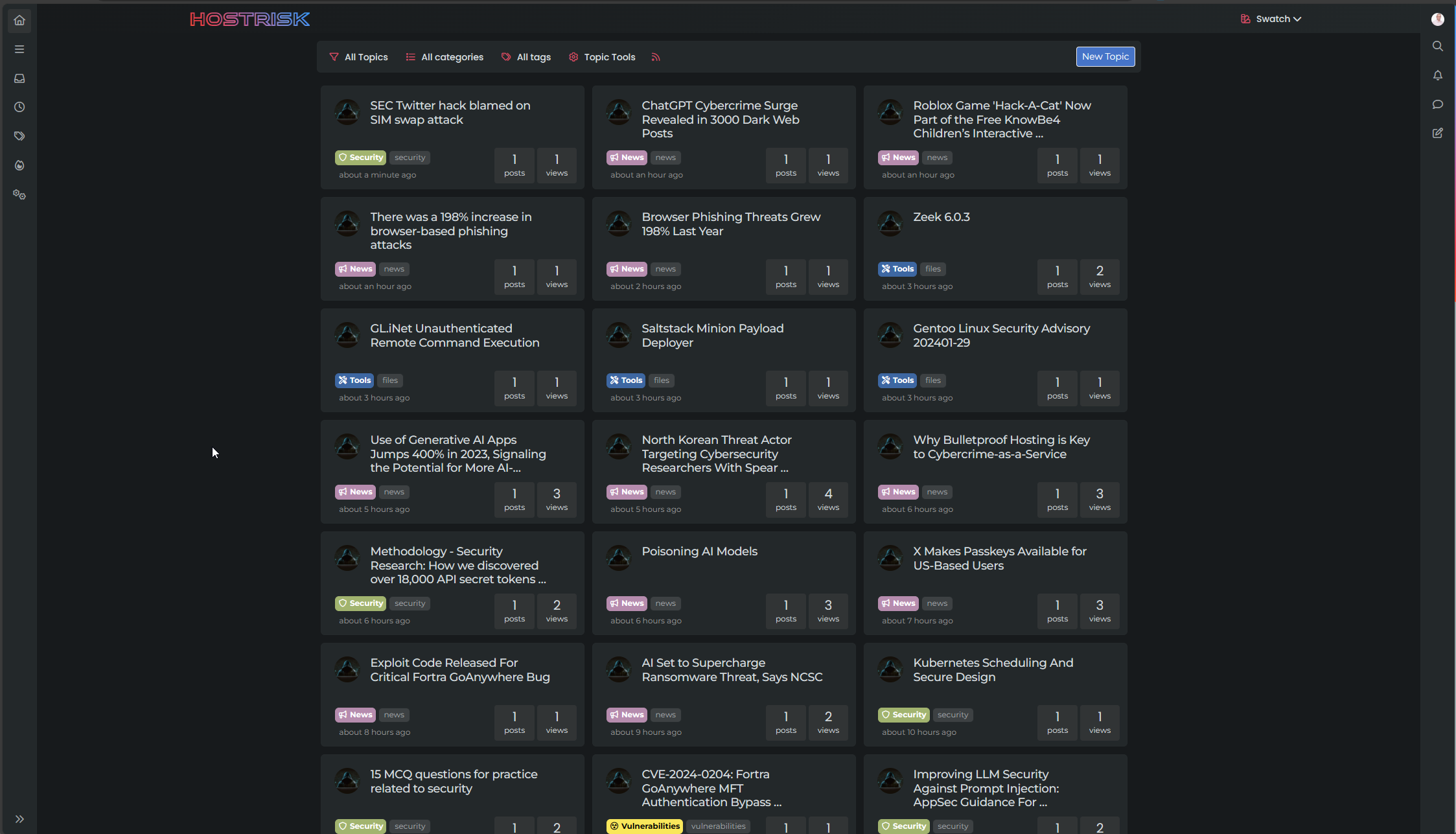
    Perfect with White background theme but much less with black themes backgrounds (we see the edges of the shine effect)


    white.gif black.gif

  • @phenomlab said in "Glass" (shine) effect on Sudonix logo:

    @DownPW Is this on your DEV server?

    Nope. Prod Server

    Seems to be better after some CSS modification : police position, etc…
    Or display: none on CSS title class if needed

    Perfect with White background theme but much less with black themes backgrounds (we see the edges of the shine effect)

    white.gif black.gif

    @DownPW said in "Glass" (shine) effect on Sudonix logo:

    Perfect with White background theme but much less with black themes backgrounds (we see the edges of the shine effect)

    Yes, you will need to modify the CSS according. For example, on Sudonix, I use

        --bs-node-shine: linear-gradient(90deg, rgba(28, 38, 44, 0) 0%, rgba(74, 100, 116, 0.5) 50%, rgba(28, 38, 44, 0) 100%);
    

    Essentially, you choose the base background, the shine colour, and then the base background again.



Related Topics
  • 3 Votes
    2 Posts
    1k Views
    Very great
  • 50 Votes
    107 Posts
    25k Views
    @crazycells [image: 1711908210287-7f4c7193-7c28-4e2e-80e8-d439ac7285c6-image.png] [image: 1711908232109-3ab9c33d-04b9-4c15-91e6-891450aebfc2-image.png]
  • 15 Votes
    27 Posts
    5k Views
    For anyone else coming here and is struggling to get pm2 to work with Umami (as I did - it started, but never seemed to work after a reboot which is pretty useless), you can use the below. Obviously, change the parts noted inside the [brackets]. Follow the below instructions: Instructions Open a terminal and create a new systemd service file: sudo nano /etc/systemd/system/umami.service Add the following content to the file: [Unit] Description=Umami Analytics Server After=network.target [Service] Type=simple User=[umami user] WorkingDirectory=[path to umami] ExecStart=/usr/local/bin/node [path to umami]/node_modules/.bin/next start Restart=on-failure [Install] WantedBy=multi-user.target Replace [umami user] with the username of the user that should run the Umami service, and [path to umami] with the actual path to your Umami installation. Save the file and exit the editor. Reload the systemd manager configuration: sudo systemctl daemon-reload Enable the Umami service to start on boot: sudo systemctl enable umami.service Start the Umami service: sudo systemctl start umami.service You can check the status of the service with: sudo systemctl status umami.service This systemd service file will ensure that Umami starts automatically when the system boots, and it will restart the service if it fails. Remember to adjust the WorkingDirectory and ExecStart paths according to where Umami is installed on your system, and ensure that Node.js is installed and accessible at /usr/bin/node (or adjust the path to Node.js as necessary).
  • Threaded post support for NodeBB

    Let's Build It threading nodebb
    146
    3
    50 Votes
    146 Posts
    53k Views
    Updated git for above change https://github.com/phenomlab/nodebb-harmony-threading/commit/14a4e277521d83d219065ffb14154fd5f5cfac69
  • Rotating Star Effect

    Solved Let's Build It wordpress css
    17
    12 Votes
    17 Posts
    2k Views
    @phenomlab thanks a lot for these, both of the below are awesome! https://codepen.io/bennettfeely/pen/vYLmYJz https://codepen.io/C-L-the-selector/pen/MWZbWBo
  • 21 Votes
    110 Posts
    28k Views
    @crazycells said in Setup OGProxy for use in NodeBB: are they cached for each user separately? No. It’s a shared cache @crazycells said in Setup OGProxy for use in NodeBB: additionally, this is also handling youtube videos etc, right? No. This is handled by nodebb-plugin-ns-embed
  • 14 Votes
    16 Posts
    4k Views
    Hmm - seems I never committed this code. I’ll do that now… EDIT - here it is https://github.com/phenomlab/category-list/tree/main
  • 5 Votes
    9 Posts
    4k Views
    @phenomlab Very very great Mark Thanks again, It’s perfect now ! –> I share my code that I modified. I’ve added French and English comments. If you see things to change Mark, don’t hesitate. As usual, all the access paths (FA icons, logo) will have to be modified according to your architecture. You can also very well add/remove time slots and change welcome messages to suit your needs. Widgets ACP/HTML Widget Footer Logo <center> <br><br> <img id="thislogo" src="path/to/my/image"> </center> Widget Welcome Message <!-- IF loggedIn --> <div class="getUsername">, <a href="/me"><span class="username"></span></a></div> <!-- ENDIF loggedIn --> CSS – I added the size font-weight: 900; in the CSS because otherwise some FA icon wasn’t displayed correctly and reduce margin : i#thisicon { font-family: "Font Awesome 5 Free"; font-style: normal; margin-right: 8px; font-weight: 900; } .getUsername { padding-top: 20px; text-align: right; } /*Smartphone*/ /*On désactive le message de bienvenue"*/ /*We disable the welcome message"*/ @media all and (max-width: 1024px) { .getUsername { display: none; } } JAVASCRIPT // ------------------------------------------ // Welcome Message avec icône et Footer logo // Welcome Message with icon and Footer logo // ------------------------------------------ $(window).on('action:ajaxify.end', function (data) { //On récupère le username dans le DOM et on l'affiche //We retrieve the username from the DOM and display it function updateUsername() { $('.getUsername .username').text(app.user.username); } if (document.readyState === 'loading') { document.addEventListener('DOMContentLoaded', updateUsername); } else { updateUsername(); } //On déclare les variables principales (themessage & thehours) ainsi que les variables secondaires correspondants aux plages horaires //We declare the main variables (themessage & thehours) as well as the secondary variables corresponding to the time slots var thehours = new Date().getHours(); var themessage; var wakeup = ('Good day'); var morning = ('Good morning'); var lunch = ('Bon appétit'); var afternoon = ('Good afternoon'); var drink = ('Cheers'); var evening = ('Good evening'); var night = ('Good night'); var welcome = ('Welcome'); var matched = false; //On peux ici tester le résultat du code en spécifiant une heure (!!!IMPORTANT: Commenter une fois le script testé!!!) //Here we can test the result of the code by specifying a time (!!!IMPORTANT: Comment once the script has been tested!!!) //thehours = 20 //On déclare les plages horaires avec les icones FA et les logos //We declare the time slots with FA icons and logos path if (thehours >= 0 && thehours < 6) { themessage = night; theicon = "fa-solid fa-moon"; thelogo = "/assets/customlogo/XXX.png"; } else if (thehours >= 6 && thehours < 8) { themessage = wakeup; theicon = "fa-solid fa-mug-hot"; thelogo = "/assets/customlogo/XXX.png"; } else if (thehours >= 8 && thehours < 12) { themessage = morning; theicon = "fa-solid fa-sun"; thelogo = "/assets/customlogo/XXX.png"; } else if (thehours >= 12 && thehours < 13) { themessage = lunch; theicon = "fas fa-hamburger"; thelogo = "/assets/customlogo/XXX.png"; } else if (thehours >= 13 && thehours < 16) { themessage = afternoon; theicon = "fa-solid fa-sun"; thelogo = "/assets/customlogo/XXX.png"; } else if (thehours >= 16 && thehours < 18) { themessage = welcome; theicon = "fa-solid fa-rocket"; thelogo = "/assets/customlogo/XXX.png"; } else if (thehours >= 18 && thehours < 19) { themessage = drink; theicon = "fa-solid fa-wine-glass"; thelogo = "/assets/customlogo/XXX.png"; } else if (thehours >= 19 && thehours < 20) { themessage = lunch; theicon = "fas fa-pizza-slice"; thelogo = "/assets/customlogo/XXX.png"; } else if (thehours >= 20 && thehours < 24) { themessage = evening; theicon = "fa-solid fa-tv"; thelogo = "/assets/customlogo/XXX.png"; } // Si la page active est un topic, on désactive/cache le message de bienvenue // If the active page is a topic, we deactivate/hide the welcome message if (window.location.href.indexOf("topic") > -1) { console.log("This is a topic, so hide the user welcome message"); $('#thisuser').hide(); } // Sinon, on affiche le message en fonction, l'icone FA et son emplacement (prepend) // Otherwise, we display the message in function, the FA icon and its location (prepend) else { $('.getUsername').prepend("<i id='thisicon' class='" + theicon + "'></i>" + themessage); $("#thislogo").attr("src", thelogo); //$('.getUsername').prepend("<img id='thisicon' src='" + thelogo + "'></>" + themessage); } });